Quick Start
Your first DuckCam photo in about two minutes.
1. Freeze the raid
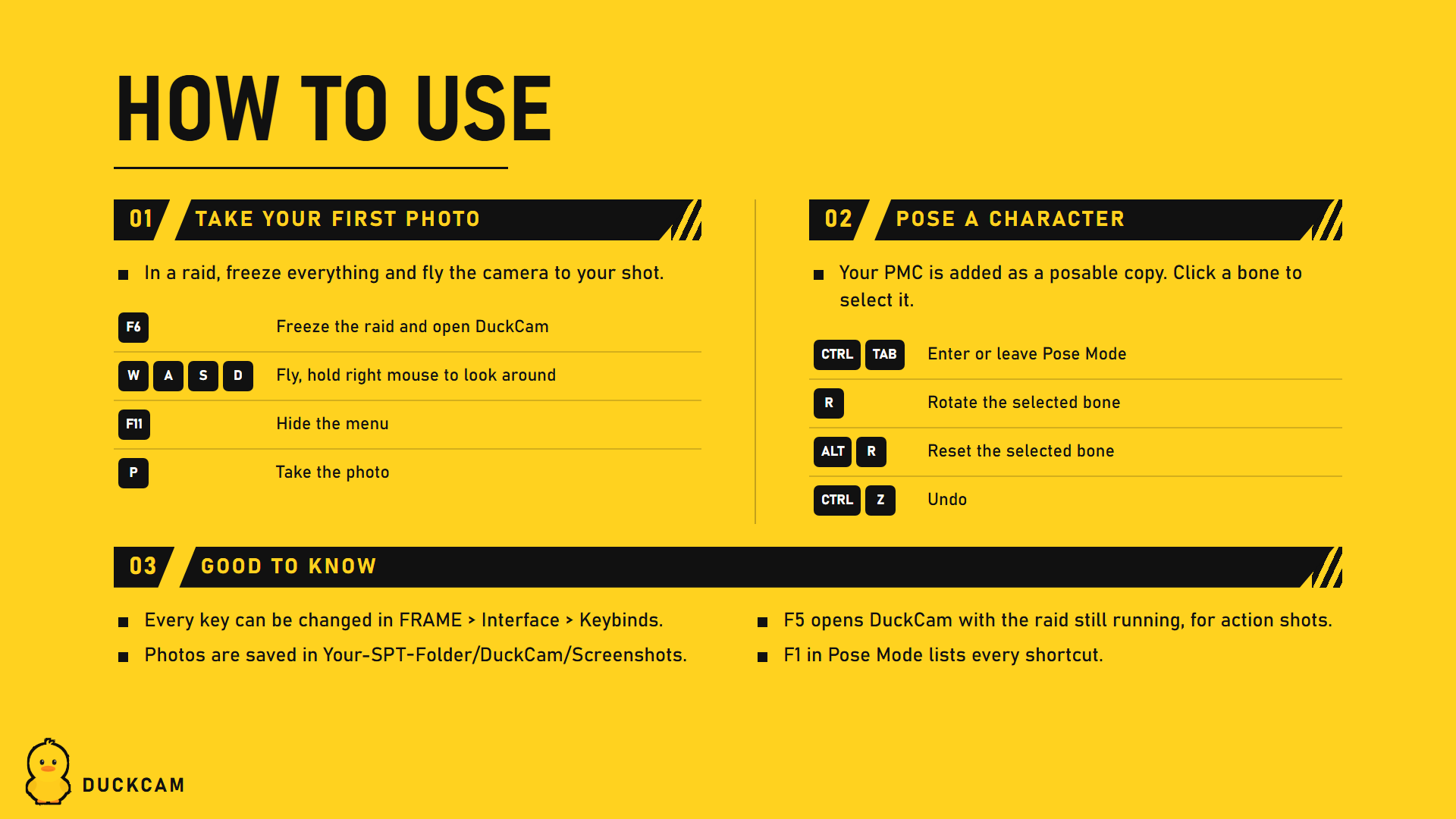
Load into a raid and press F6. Everything stops: bots, bullets, physics, the raid clock. Nobody can be hurt while you're in DuckCam, and your character won't move.
Want the raid to keep running instead? Press F5 for a live session. Press F6 inside it to freeze and unfreeze.
2. Move the camera
| Do this | To |
|---|---|
| W A S D | fly |
| R / F | go up / down |
| Hold right mouse button + move mouse | look around |
| Mouse wheel | zoom (field of view) |
| Hold Shift | fly faster |
The camera can go anywhere, but by default it stays within a radius of your PMC and doesn't pass through walls. Both can be changed in Camera.
3. Find a look (optional)
Press E a few times to reach EFFECTS. Use the arrow keys (or click the arrows) on Preset to try looks like Filmic, Noir or Golden Hour.
4. Hide the menu and take the photo
- Press Tab (or F11) to hide the menu.
- Press P to take the photo. With the menu open, Space also takes it.
The photo is saved as a PNG in Your-SPT-Folder/DuckCam/Screenshots/, with no UI in it. A message at the top right shows the file name.
5. Leave DuckCam
Press Esc, then Leave in the "Leave DuckCam?" window (or press F6 again). The raid continues exactly where it stopped, and every change DuckCam made (effects, time, weather, camera) is put back.
Next steps
- Put yourself in the shot: Pose your PMC
- Bigger photos and transparent backgrounds: 16K and transparent photos
- A smooth camera move: Camera path video
- Every key: Controls and Keybinds