Pose Mode
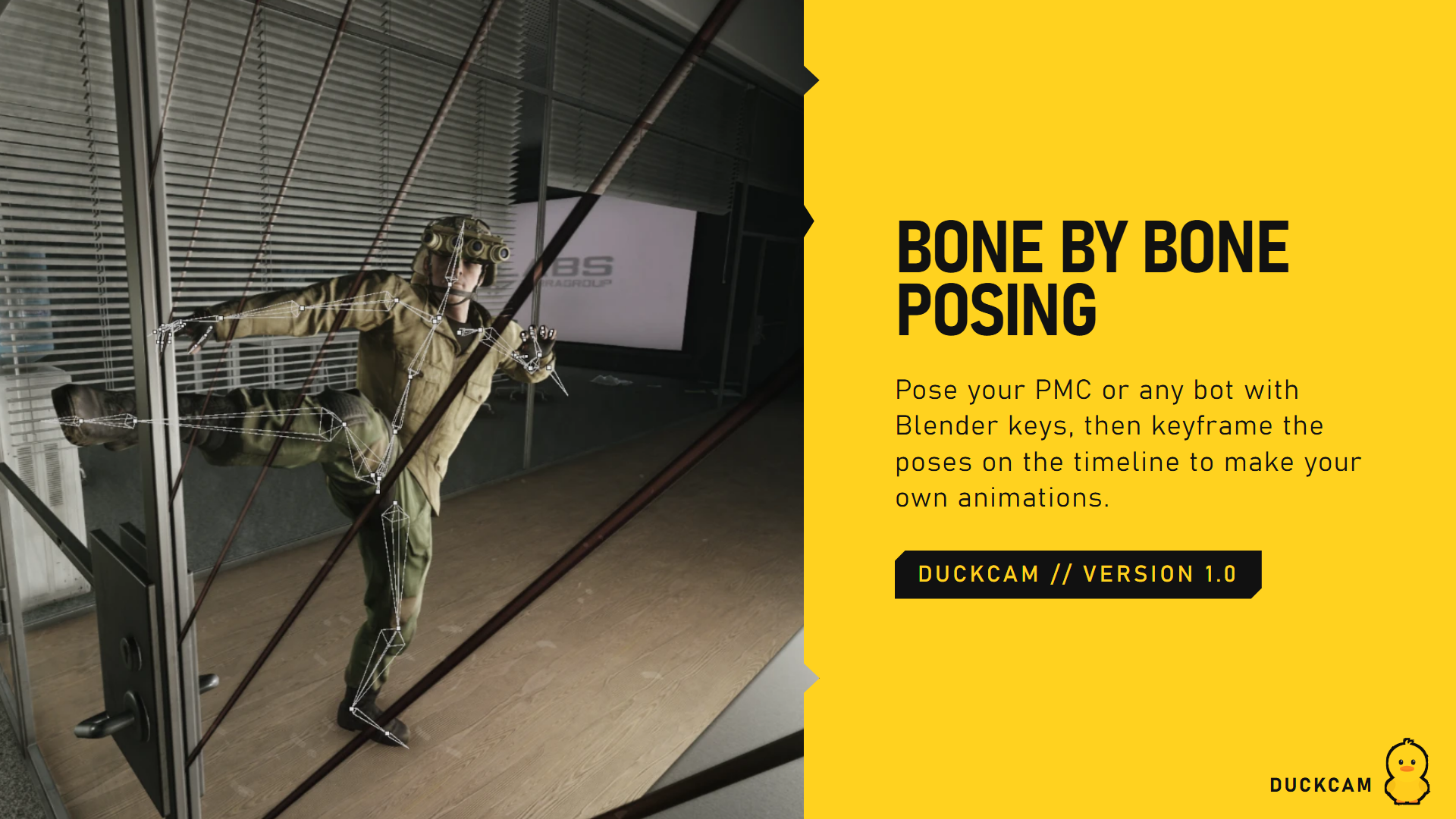
A Blender-style pose editor: pose any character bone by bone, with gizmos, IK, mirroring, undo and a pose library. If you know Blender's Pose Mode, you already know the keys.
Open it
- Press F6 to freeze the raid (Pose Mode needs a frozen scene).
- Press Ctrl+Tab (or Ctrl+P, or CHARACTERS > Pose Bone By Bone).
- If you have no character yet, your PMC is added as a photo copy and your real PMC is hidden while the copy stands in its place.
- A help panel opens the first time. F1 or the ? button shows it again.
- Ctrl+Tab again (or Esc) leaves Pose Mode.
While Pose Mode is on, DuckCam's own camera and menu keys pause so the Blender keys work.
The screen
- The skeleton is drawn as Blender-style bones over the character. Selected bones are blue; the active bone is light blue.
- The panel (left):
- Tool buttons: TWEAK, MOVE, ROTATE, GLOBAL / LOCAL, MIRROR, GIZMO
- UNDO, REDO, POSE ON / OFF, RESET ALL
- BONES: bone groups (TORSO, HEAD, ARM.L, ARM.R, FING.L, FING.R, LEG.L, LEG.R, TWIST) and a searchable bone tree
- BONE: the selected bone's rotation as numbers you can drag or click to type
- OPTIONS, POSE TOOLS and LIBRARY
- The hint bar at the top lists the most useful keys.
Select bones
| Do this | Result |
|---|---|
| Click a bone (its line or the white dot at its joint) | Select it |
| Shift+click | Add to the selection |
| Drag on empty space (or B) | Box select. Shift adds, Ctrl removes |
| A / Alt+A / Ctrl+I | Select all / none / invert |
| [ / ] | Select the parent / child bone (Shift extends) |
| Ctrl+Shift+M | Select the mirrored bones |
| Click a group button | Show / hide that group of bones. Shift+click selects the whole group |
| Click a name in the bone tree | Select that bone |
Rotate and move
- Select bones.
- Press R and move the mouse to rotate.
- X / Y / Z locks to an axis. Press it twice for the bone's own (local) axis.
- Shift+X/Y/Z locks to a plane. C frees it again.
- Type a number for exact degrees: R X 45 Enter.
- Hold Ctrl to snap to 5 degrees, Shift for fine control.
- R R (press R again) switches to a free trackball rotation.
- Left click / Enter / Space keeps it. Right click / Esc cancels.
G moves. Only the Hips (Pelvis) can move, because game bones are rotation-only. With AUTO IK (PINS) on, G on a hand or foot moves it and the arm or leg follows.
Gizmos
Pick ROTATE or MOVE in the panel to get on-screen handles: - Rotate: drag the red (X), green (Y) or blue (Z) ring, the outer white ring (around the view), or the inside of the gizmo for a free tumble. - Move: drag an axis arrow or the centre. - GLOBAL / LOCAL switches the gizmo between world axes and the bone's own axes.
Dragging directly on a bone also rotates it (the Hips move).
Clear, undo, copy
| Key | Action |
|---|---|
| Alt+R / Alt+G | Clear rotation / location of the selected bones |
| Ctrl+Z / Ctrl+Shift+Z (or Ctrl+Y) | Undo / redo |
| Ctrl+C | Copy the selected bones' pose (exactly as you see it) |
| Ctrl+V | Paste it, also onto another character |
| Ctrl+Shift+V | Paste mirrored (left arm onto right arm, and so on) |
| RESET ALL (press twice) | Clear every edit and go back to the pose underneath (for example the raid stance or a saved pose) |
Hide bones
H hides the selected bones, Shift+H hides all the others, Alt+H reveals everything. Hidden groups show as dark buttons; click one to bring it back.
Camera in Pose Mode
| Input | Action |
|---|---|
| Middle mouse drag | Orbit around the selection |
| Shift + middle mouse | Pan |
| Ctrl + middle mouse or wheel | Zoom |
| Hold right mouse + WASD (R/F up/down, wheel = speed) | Fly |
| Home | Frame the whole character |
| ` | View menu |
Right-click menu
A right click (or W) opens the pose menu with the most common commands, each with its shortcut beside it: clear rotation/location, copy/paste, select parent/child/mirror, hide/reveal, frame selected/all.
Options
| Option | What it does |
|---|---|
| BASE: ANIMATION / REST POSE | Edit on top of the current animation, or on the model's bind pose |
| WRIST TWIST SPREAD | Spreads hand twist over the forearm like the community Blender rigs, for natural wrists |
| AUTO IK (PINS) | G on a hand or foot moves it and pins it; the limb follows |
| WINDOW | Panel opacity |
| 1ST PERSON | Look through the character's eyes while posing |
| WEAPON GIZMO | (when holding a weapon) G moves and R rotates the weapon itself. Click a bone to go back to bones |
| RESET WEAPON | Put the weapon back in the hand where the pose had it |
Pose tools
- COPY POSE / PASTE / PASTE FLIPPED: same as Ctrl+C / Ctrl+V / Ctrl+Shift+V.
- T POSE / A POSE: start from a neutral pose. RESET ALL goes back to the pose underneath.
- HAND PRESETS (select an arm or finger bone): Open, Relaxed, Fist, Point, Grip.
Library
Type a name and press SAVE NEW to save the whole visible pose to Your-SPT-Folder/DuckCam/Poses/. Load poses from the list, on any character. Saved poses also appear in CHARACTERS under Category > DuckCam.
Weapons while posing
When a character holds a weapon, it follows the right hand: pose the arm and the gun goes with it. Use WEAPON GIZMO to fine-tune where it sits in the hand.
Taking the photo
Press F11 to hide everything, then P.
Shortcuts
| Key | Action |
|---|---|
| LMB / Shift+LMB | Select / add; drag on empty space = box select |
| LMB drag on a bone | Rotate it (the Hips move) |
| B | Box select |
| A / Alt+A / Ctrl+I | Select all / none / invert |
| [ / ] (Shift: extend) | Select parent / child |
| Ctrl+Shift+M | Select mirrored bones |
| R (R again = trackball) / G | Rotate / move (Hips, or pinned limbs with Auto IK) |
| X Y Z (twice = local), Shift+X/Y/Z, C | Axis lock, plane lock, free |
| 0-9 . - | Type an exact value |
| Ctrl / Shift (held) | Snap 5 degrees or 5 cm / fine control |
| LMB, Enter, Space / RMB, Esc | Confirm / cancel |
| Alt+R / Alt+G | Clear rotation / location |
| H / Shift+H / Alt+H | Hide selected / hide others / reveal |
| Ctrl+C / Ctrl+V / Ctrl+Shift+V | Copy / paste / paste mirrored |
| Ctrl+Z / Ctrl+Shift+Z (or Ctrl+Y) | Undo / redo |
| MMB / Shift+MMB / Ctrl+MMB / wheel | Orbit / pan / zoom |
| Hold RMB + WASD | Fly |
| RMB click or W | Pose menu |
| ` / Home | View menu / frame all |
| , / Ctrl+` | Orientation menu / show-hide gizmos |
| F1 | Help panel |
| Esc | Cancel, close a menu, then leave Pose Mode |
| Ctrl+Tab / Ctrl+P | Enter / leave Pose Mode |
| F11, then P | Hide the UI, take the photo |
On some keyboard layouts (Nordic, German...)
[,]and`sit on other keys or need AltGr. The right-click menu and the bone list do the same jobs.
Good to know
- Tarkov heads have no face rig, so there are no eye or facial expression controls.
- Poses are shown on photo copies, never on your real character.