Paths and Timeline
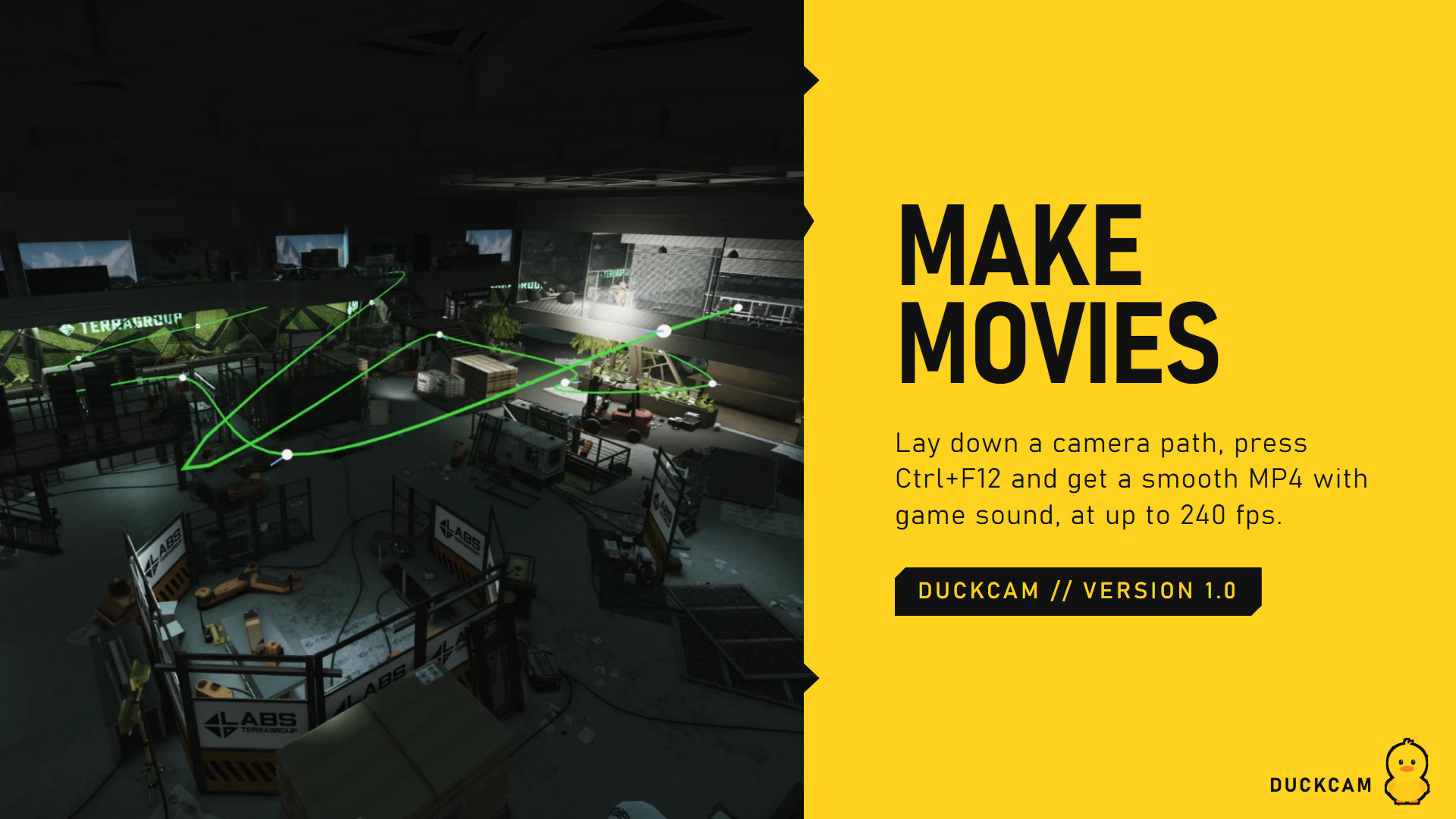
Three ways to move the camera (and characters) over time:
| Best for | |
|---|---|
| A. Keyframe path | Smooth, precise camera moves you can edit point by point |
| B. Camera recording | A hand-held feel: you fly, DuckCam remembers exactly how |
| Animation timeline | Animating characters' poses and the camera together, SFM style |
A. Keyframe path
A path is a smooth Bezier curve through spots you choose. At every keyframe the camera looks where you were looking when you added it.
Make a path
- Fly the camera to where the shot should start.
- Press Add Keyframe (or Insert).
- Fly to the next spot and press it again. Repeat for as many spots as you like.
- Press Play. The camera glides through every keyframe. Stop ends it.
Timing
| Row | What it does |
|---|---|
| Timing | Whole Path Duration: you set the total time. Or per-point speeds (below) |
| Path Duration | Total length in seconds (up to 3600 s) |
| Constant Speed | Same speed along the whole path, however far apart the points are |
| Ease In / Ease Out | Gentle start / gentle stop |
| Loop | Plays forever |
| 3 s Countdown | A 3-second countdown before playing, handy when recording video |
Per point you can also set: base speed, speed for the stretch after it, Speed Up Leaving, Slow Down Arriving, Wait Here (pause at that point), plus start and end delays.
Fix a point
- Edit Points On Screen shows numbered tags in the world. Drag a tag to move that point. Shift while dragging changes its height.
- Or pick a keyframe in the list and press Edit:
- Follow Camera: the point follows your camera until you stop it. Fly it into place.
- Yaw / Pitch / Roll / Field Of View: type exact values.
- Set From Camera copies the current camera; View From Key jumps the camera to that point.
- Insert Before / Insert After add points in the middle. First / Previous / Next / Last walk through them.
- Delete removes the selected keyframe. Clear Path removes all.
Curve shape
| Row | What it does |
|---|---|
| Manual Handles | Off = automatic smooth curve. On = drag each point's handles (dots) on screen |
| Curve Smoothness | How round the automatic curve is |
| Separate In/Out Handles | Different handle lengths on each side. Alt while dragging splits them |
| Handle Length | Handle size |
| Aim Handle With Camera | Points the handle where the camera looks |
Several paths
Active Path picks the path you're editing. New Path and Duplicate make more. While a path plays, Alt+1 to Alt+9 cut to path 1-9 at the same progress, like switching cameras in a film.
Show Path In World
Draws the path line in the scene so you can see where the camera will go.
B. Camera recording
- Press Record (or F2) and fly the camera by hand.
- Press F2 again to stop. Shift+F2 continues the same take.
- Press Play (or F3). The camera repeats your exact flight.
Loop Recording repeats it; Play In Real Time plays it at the speed you flew.
Handheld shake on paths
A separate shake section adds a subtle hand-held wobble while a path or recording plays.
Save and load
Type a File Name, then Save Path or Save Recording. They're stored in Your-SPT-Folder/DuckCam/Paths/ and load on the same map. Paths are tied to positions on the map they were made on.
Animation timeline (Ctrl+T)
An SFM-style timeline that keyframes the camera and every character's whole pose over time.
- Freeze the raid and add your characters (Characters).
- Open the timeline with Ctrl+T (or Animation Timeline > Open in PATHS).
- Move the playhead to a time.
- Pose your characters (Pose Mode) and place the camera.
- Press KEY ALL (or KEY CAMERA / KEY CHARACTER).
- Move the playhead, change the pose or camera, key again.
-
Ctrl+Space plays / pauses. Drag keys to retime them.
-
Each key has an ease: smooth, linear, ease in, ease out or step.
- Stopping on a time makes that pose editable in Pose Mode.
- Save scenes to
Your-SPT-Folder/DuckCam/Scenes/. - Record it with Ctrl+F12 for smooth video at any frame rate (Capture).
Making a video from a path
See the full guide: A smooth camera move video.